
Why Your YouTube Banner Looks Blurry (and How to Fix It)
You found the perfect image. You uploaded it to YouTube. And then... pixel soup.
There is nothing more frustrating than a blurry, low-quality banner ruining the look of your channel. It screams "amateur" before a viewer even watches a single video.
If your banner looks fuzzy, it's almost certainly due to one of these three reasons. Here is how to diagnose and fix it.
Reason 1: Your Image is Too Small
This is the most common culprit.
YouTube requires a banner image that is 2560 x 1440 pixels.
If you upload an image that is 1920x1080 (standard HD) or smaller, YouTube has to stretch it to fill the TV screen space. When you stretch a small image, you get blur.
The Fix: Always start with an image that is at least 2560x1440. If your source image is small, don't just resize it in Paint—that won't add detail. You need to find a higher-resolution source or use an AI upscaler.
Reason 2: The Aspect Ratio is Wrong
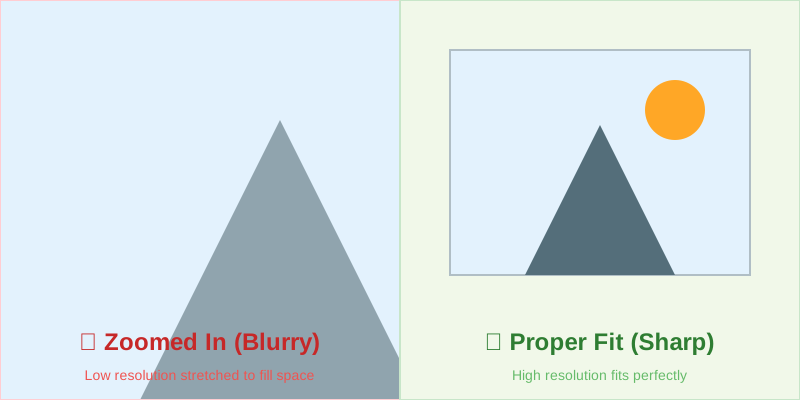
YouTube's banner slot is a 16:9 rectangle (on TV). If you upload a square image or a vertical photo, YouTube will force you to crop it.
If you zoom in too much during this cropping process, you are effectively selecting a tiny portion of your original image and blowing it up. This destroys quality.
The Fix: Use a tool that helps you fit your image without excessive zooming. Our YouTube Banner Maker allows you to preview exactly how much zoom is safe before quality drops.
Reason 3: Compression Artifacts
Even if your dimensions are perfect, YouTube applies its own compression to make pages load faster. If your file size is too big (over 6MB) or if you save it in a low-quality format, YouTube's compression will make it look worse.
The Fix:
- Format: Use PNG for graphics/text (it keeps lines sharp) and JPG for photos.
- File Size: Keep it under 6MB.
- Dimensions: Stick exactly to 2560x1440.
The "One-Click" Solution
You don't need to memorize these numbers.
The easiest way to ensure your banner is sharp is to use a dedicated cropper that enforces these rules automatically.
Our free tool:
- Forces the correct 2560x1440 output.
- Shows you the Safe Area so you don't crop out important details.
- Optimizes the file size for YouTube's servers.
Ready to try it yourself?
Use our Image Dimensioning Tool now and enjoy a fast and efficient annotation experience.
Fix My Banner